Stop Letting Screenshots Turn Into Digital Clutter
March 12, 2026
Tags : AI Automation, iPhone Productivity, AI Workflows, Task Management, Digital Organization, Productivity Systems, Automation Tools, Apple Shortcuts , AI for Professionals, Workflow Automation
Stop Letting Screenshots Turn Into Digital Clutter
Open your camera roll for a moment and scroll.
Somewhere between family photos and random memes is a long trail of screenshots you meant to come back to. An order confirmation. A message you needed to follow up on. A website idea. A reminder you captured because it mattered in that moment.
But nothing ever happened.
What started as a quick way to remember something slowly turned into chaos. Your screenshots pile up, the context disappears, and eventually they blend into the rest of the camera roll like digital dust.
Most people assume screenshots are just a convenience feature. In reality they are something else entirely.
They are unfinished decisions.
You took the screenshot because something mattered right then. Maybe it was a task, an idea, or a reminder for later. The problem is your phone treats every screenshot exactly the same. It saves the image and moves on, leaving you with a growing archive of clutter that never turns into action.
This is where a little AI and automation can change everything.
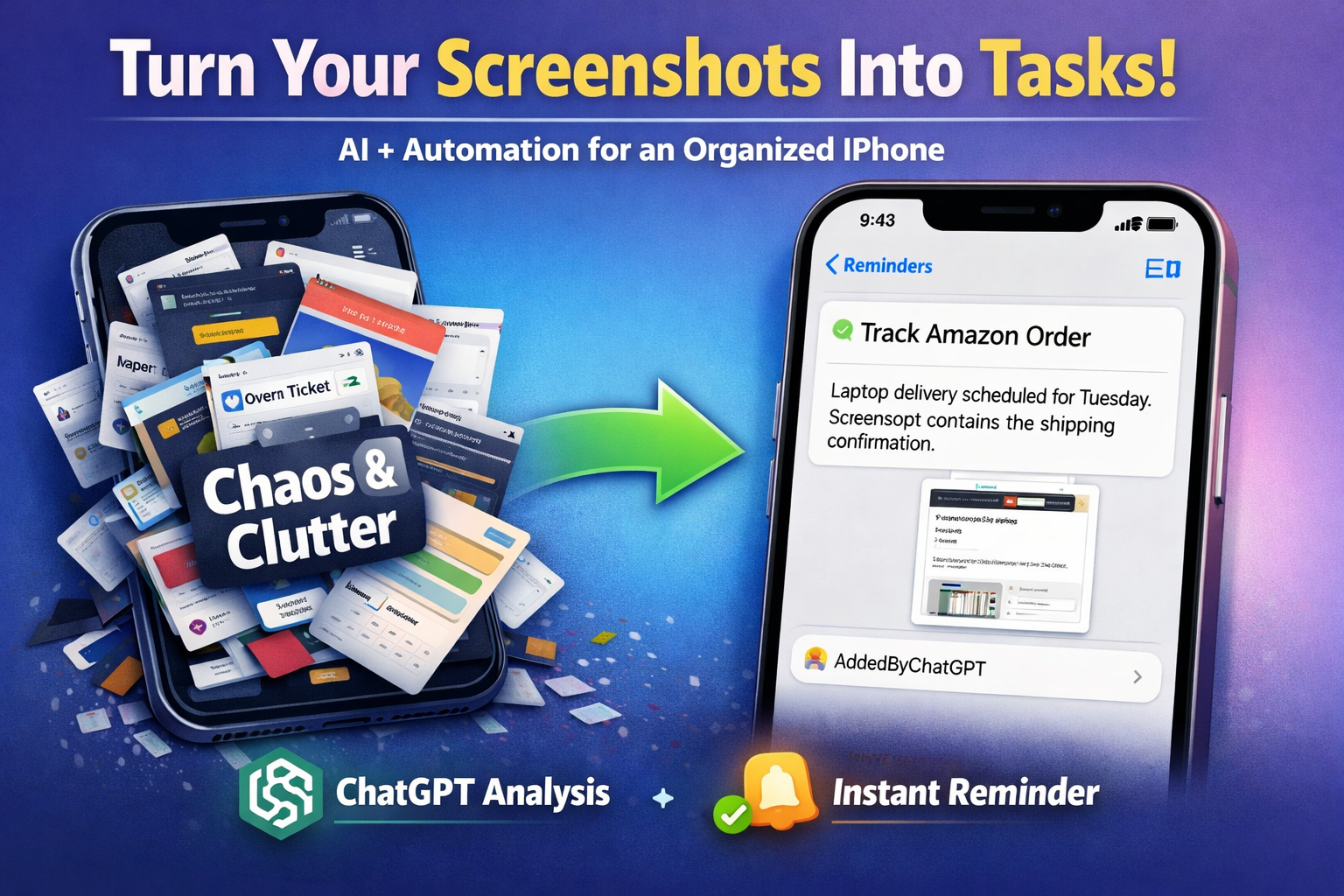
With a simple iPhone Shortcut connected to ChatGPT, your screenshots can instantly become organized tasks. Instead of sitting quietly in your camera roll, the screenshot is analyzed, given a title and summary, and turned into a reminder with the image attached.
The result is surprisingly powerful. Your screenshots stop collecting dust and start becoming part of an actual workflow.
What This System Actually Does
When you take a screenshot and run the shortcut, a few things happen behind the scenes.
ChatGPT analyzes the screenshot and your quick note about why you saved it. From that information it generates a clear title and a short summary. The shortcut then creates a reminder in your task list, attaches the screenshot, and adds a tag so you can filter AI-generated tasks later.
Instead of a file called IMG_4829.png, you might see something like this in your reminders:
Track Amazon Order
Laptop delivery scheduled for Tuesday. Screenshot contains the shipping confirmation.
Now the screenshot lives inside your task system where it belongs.
This is a small example of what happens when you combine AI with simple automation. Instead of technology creating more noise in your life, it quietly organizes information in the background.
Estimated Setup Time
Estimated setup time: about 5 minutes.
Once it is installed, using it only takes a few seconds.
A Quick Word About Workflows
No tool fixes chaos by itself.
The real power comes from pairing tools with a simple routine. If reminders are never reviewed, they eventually become another pile of clutter. A quick daily check of your task list keeps things moving and ensures nothing important slips through the cracks.
This is the bigger lesson behind many productivity systems. The goal is not just capturing information, it is creating small workflows that turn information into action.
If you would like to build this shortcut yourself, the setup steps are outlined below.
How to Set Up the Screenshot to Task Shortcut
Step 1
Open the Shortcuts app on your iPhone.
Tap the + icon to create a new shortcut.
Step 2
Tap the shortcut name at the top and rename it.
Example name:
Screenshot Task
Step 3
Tap Add Action and search for:
Ask for Input
Set the prompt to something like:
Why are you saving this screenshot?
Input type should be Text.
Step 4
Tap Add Action again and search for:
Get Images from Shortcut Input
This allows the shortcut to receive the screenshot you share.
Step 5
Add another action and search for:
ChatGPT
Choose Ask ChatGPT.
Use a prompt such as:
Analyze this screenshot and the user context. Generate a short title (maximum six words) and a brief summary describing what the screenshot represents.
Step 6
Add the action:
Create Reminder
Set the reminder title and notes to use the output generated by ChatGPT.
Step 7
Add another action:
Add Attachment to Reminder
Attach the screenshot so the original image stays connected to the task.
Step 8
Add one more action:
Add Tag to Reminder
Create a tag such as:
AddedByChatGPT
This makes it easy to filter tasks created through this shortcut.
Step 9
Tap the settings icon for the shortcut.
Enable:
Show in Share Sheet
Then select Images as the accepted input.
This allows the shortcut to appear when sharing screenshots.
How to Use It Day to Day
Once the shortcut is set up, the workflow becomes quick and natural.
- Take a screenshot
- Tap the preview thumbnail
- Tap Share
- Choose your shortcut
- Enter a short note about why you saved it
Within seconds the screenshot becomes a structured reminder with context and the image attached.
Instead of a camera roll full of forgotten images, your screenshots start working for you.
Give it a try, experiment with how you use it, and enjoy watching a little AI and automation turn everyday chaos into something far more organized.